Tutorial for players
Join your group and play
Join from your organiser's link, save a card once and tap In or Out each week. No app to download.
About 2 minutes to join · 14 steps
Step 1
No group yet? Find a game
Go to Where to play and type your postcode or town, or tap Find games near me. You'll see Bibs groups looking for players, leagues, pick-up games and venues nearby.
Ask to join a Bibs group, and the organiser emails you an invite link if they say yes.
More detail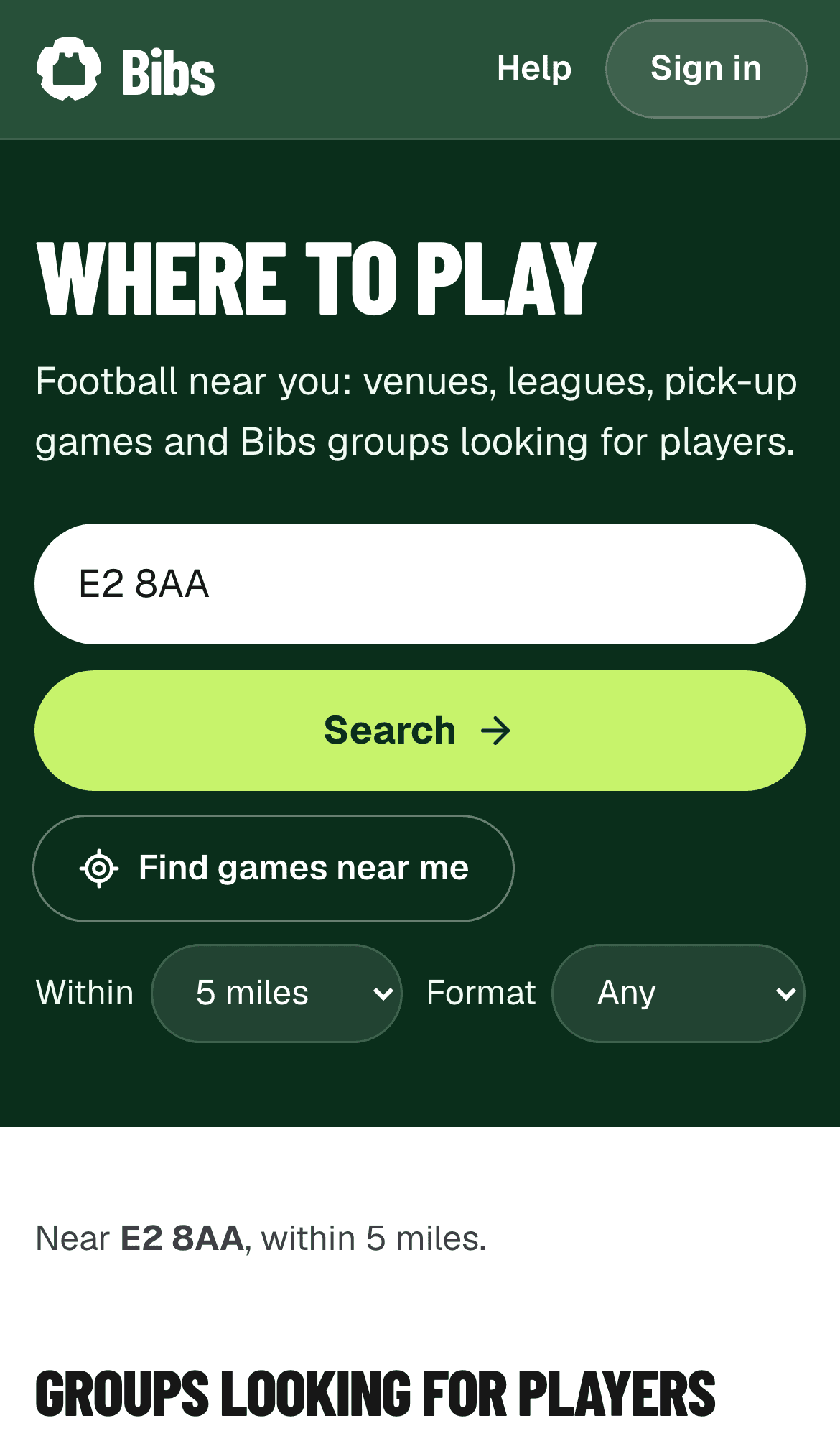
Step 2
Open the invite link
Your organiser shares a link, usually in WhatsApp. Open it on your phone to see the group, the next game and the price.
Every price includes all fees. Nothing is added later.
More detail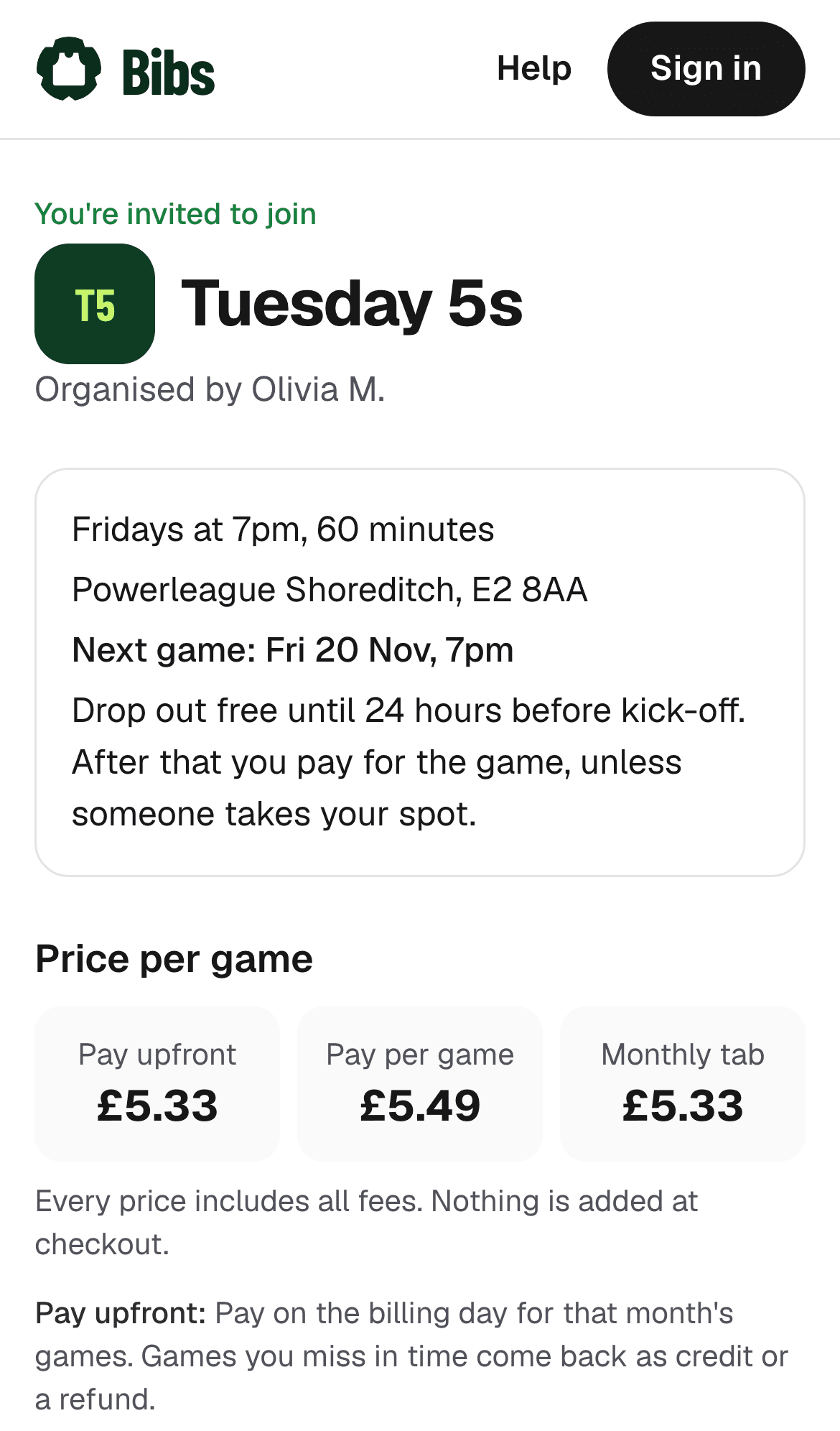
Step 3
Sign in and choose how to pay
Tap Sign in to join, enter your email and type in the 6-digit code we send you. Add your name, and tick to confirm you're 18 or over and agree to the terms.
Keep me signed in for 30 days is ticked, so on your own phone you won't need a code again unless you're away for a month.
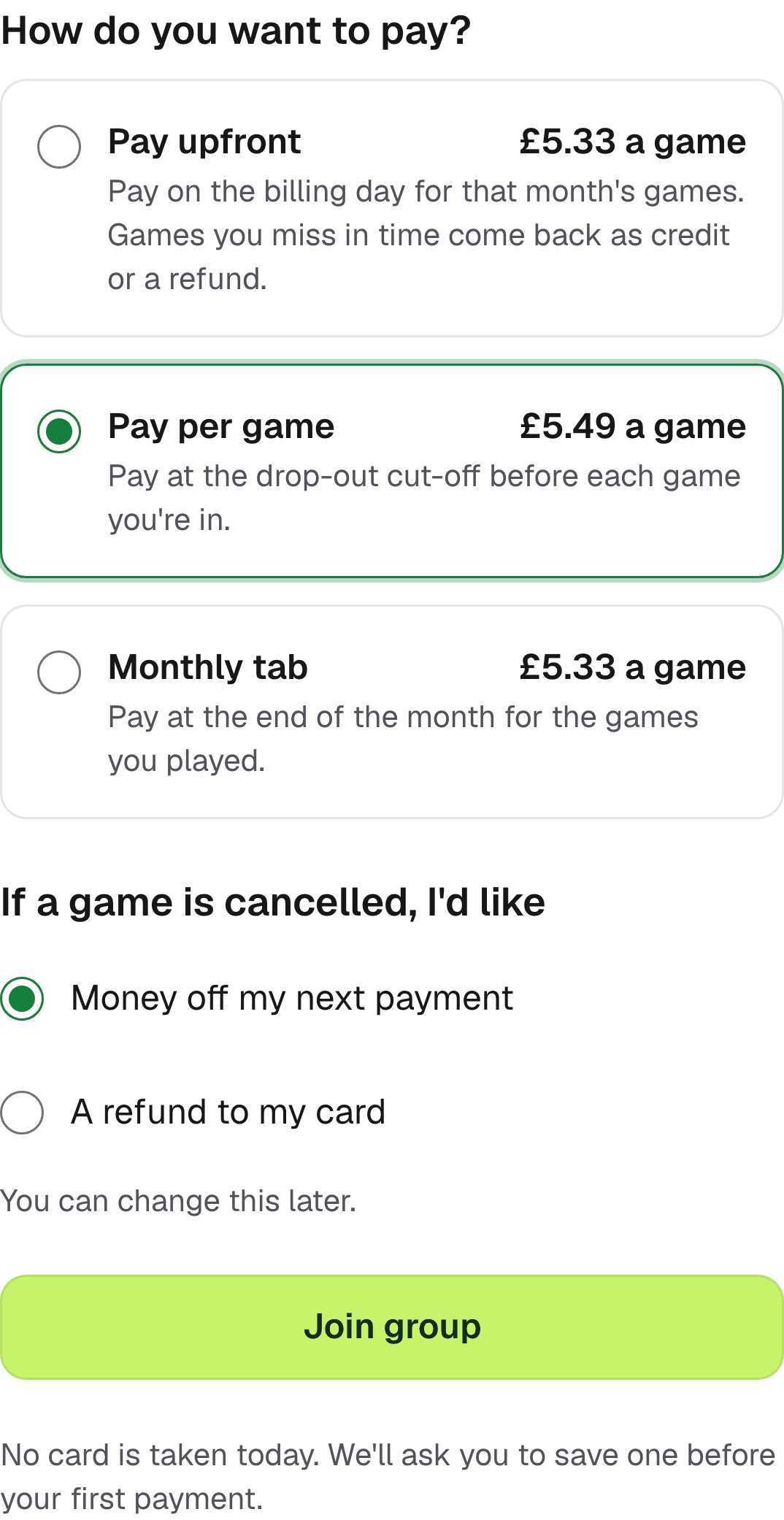
Choose how you want to pay and what you'd like if a game is cancelled, then tap Join group. Nothing is charged yet.
Step 4
Save your card
Read what you're agreeing to, tick I agree and enter your card. Apple Pay and Google Pay work too where your phone supports them.
Your card details go straight to Stripe. Bibs never sees them, and nothing is charged when you save your card.
More detail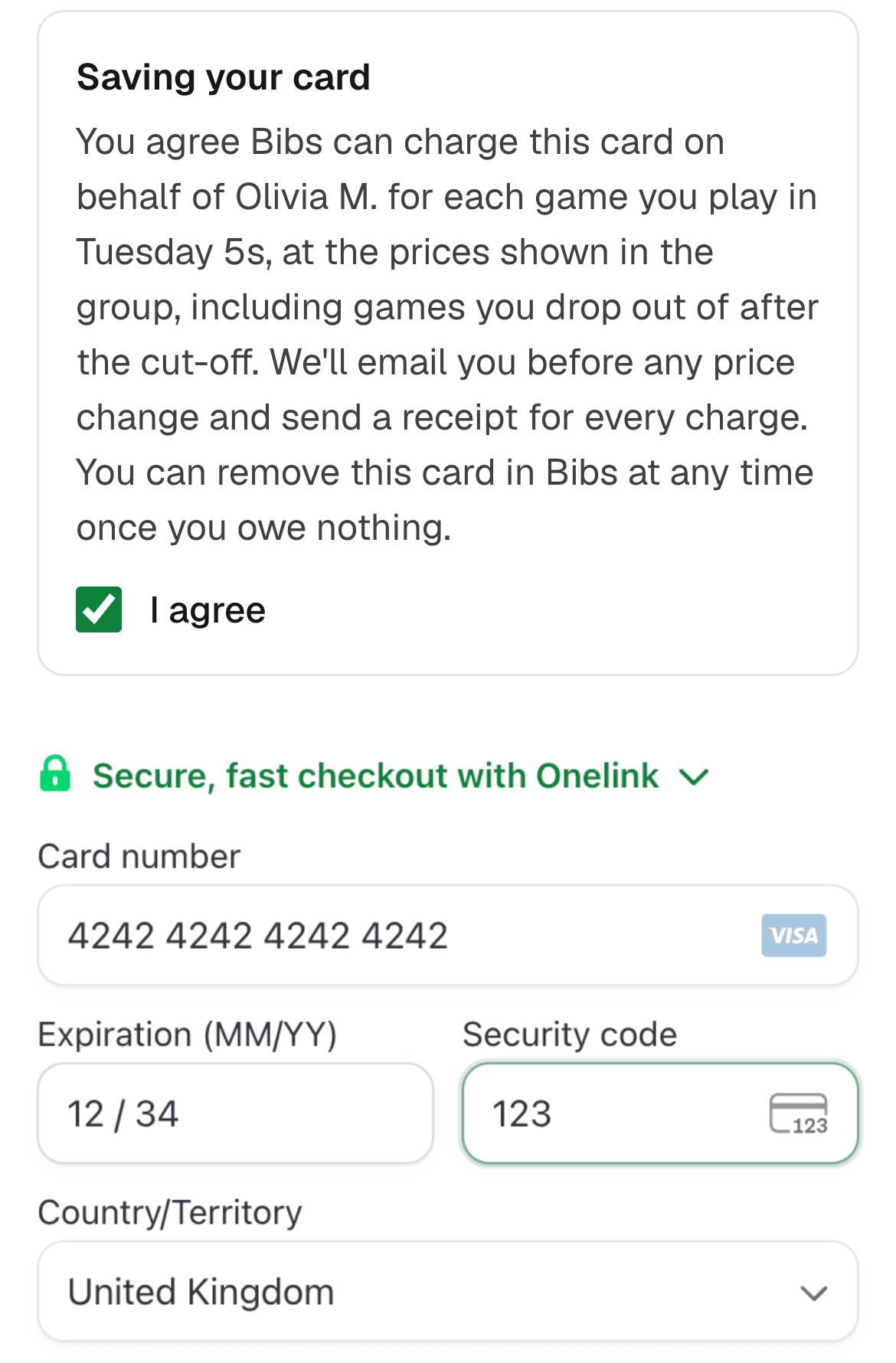
Step 5
Your group
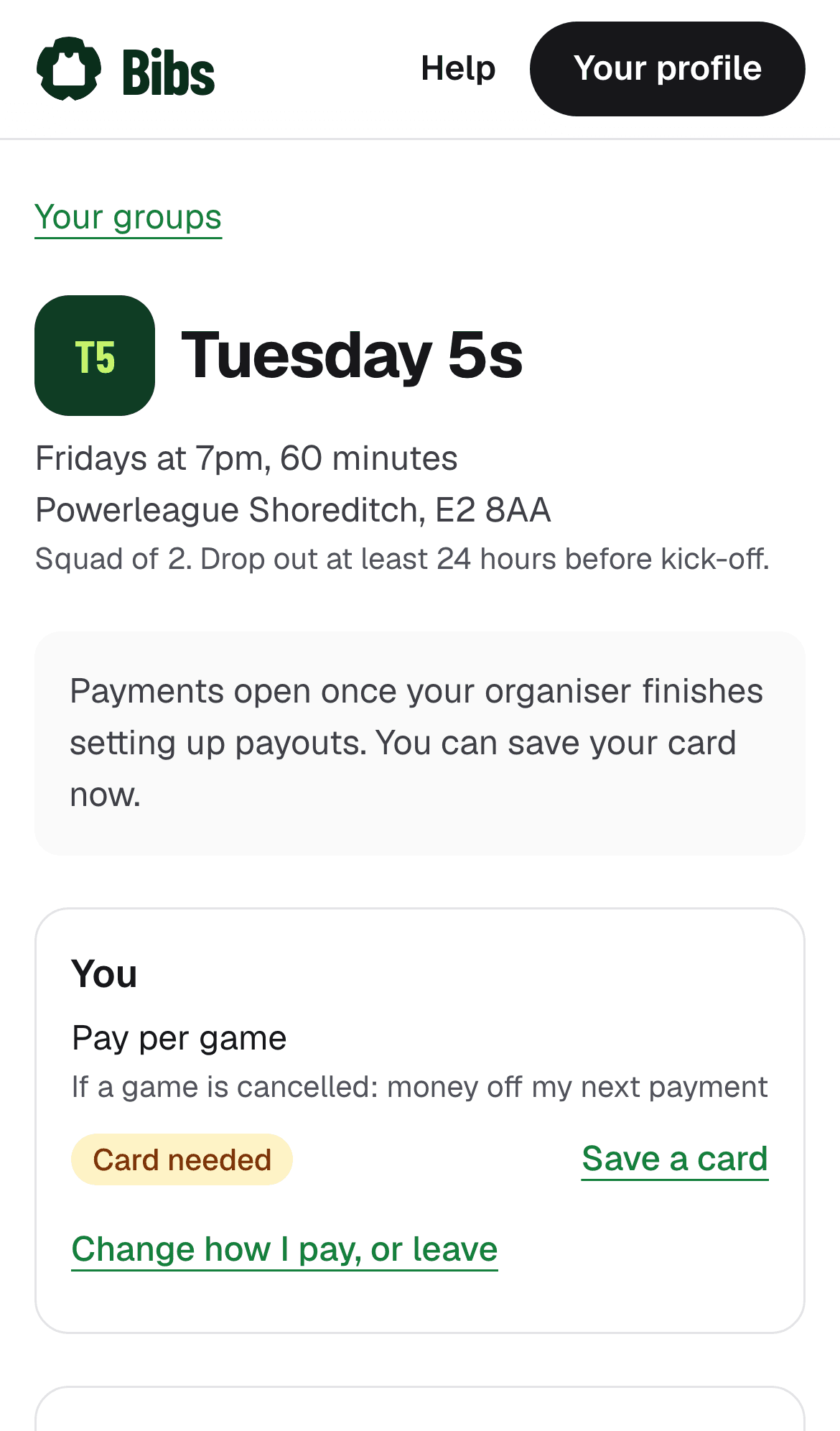
Your group page shows the upcoming games, how you pay and whether your card is saved.
Step 6
Tap In or Out
Open a game and tap In if you're playing, or Out if you're not. Everyone sees who's In.
The game page shows the drop-out cut-off. Drop out before it and you don't pay.
More detail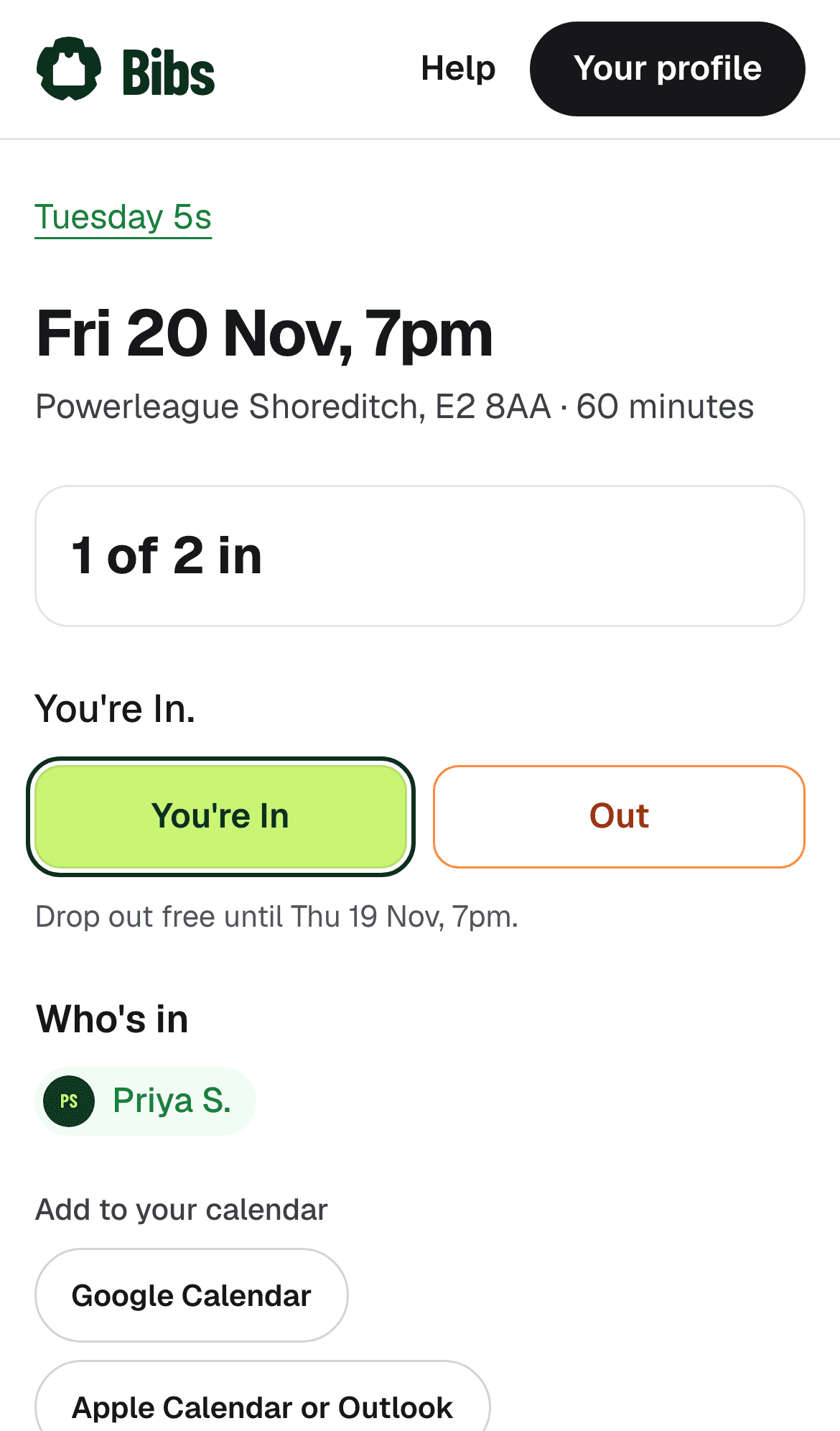
Step 7
Game full? Join the waitlist
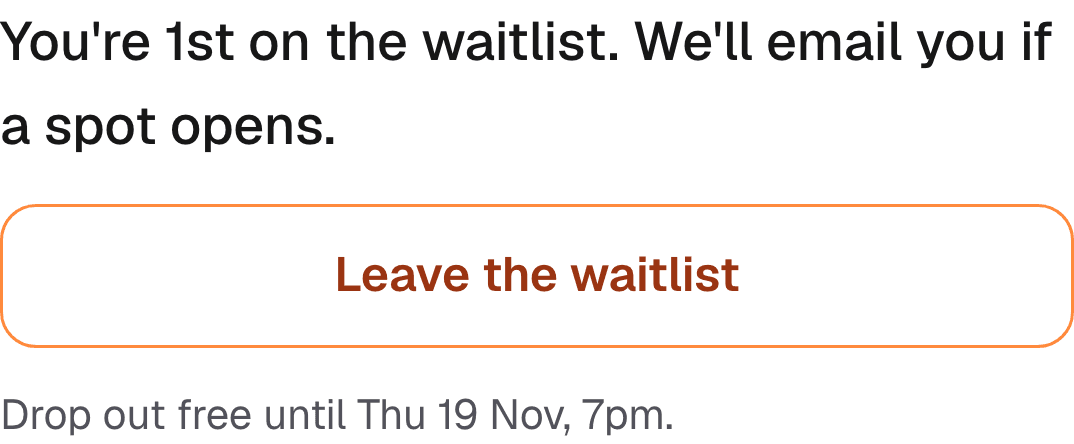
If the squad is full, tapping In puts you on the waitlist, and you can see your place.
Step 8
Grab a spot when it opens
When a spot opens, we email you. Open the game and tap Accept the spot.
Some groups give it to whoever accepts first, so be quick.
More detail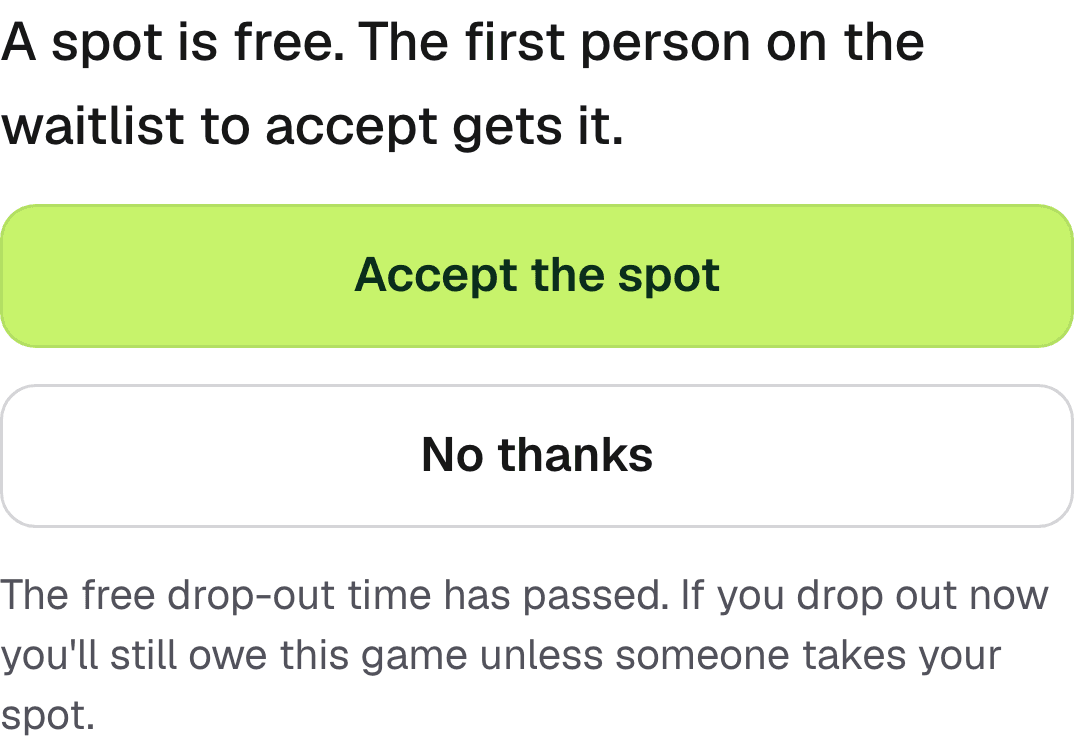
Step 9
Dropping out late
After the cut-off, tapping Out means you still owe the game, unless someone from the waitlist takes your spot. If they do, you owe nothing.
More detail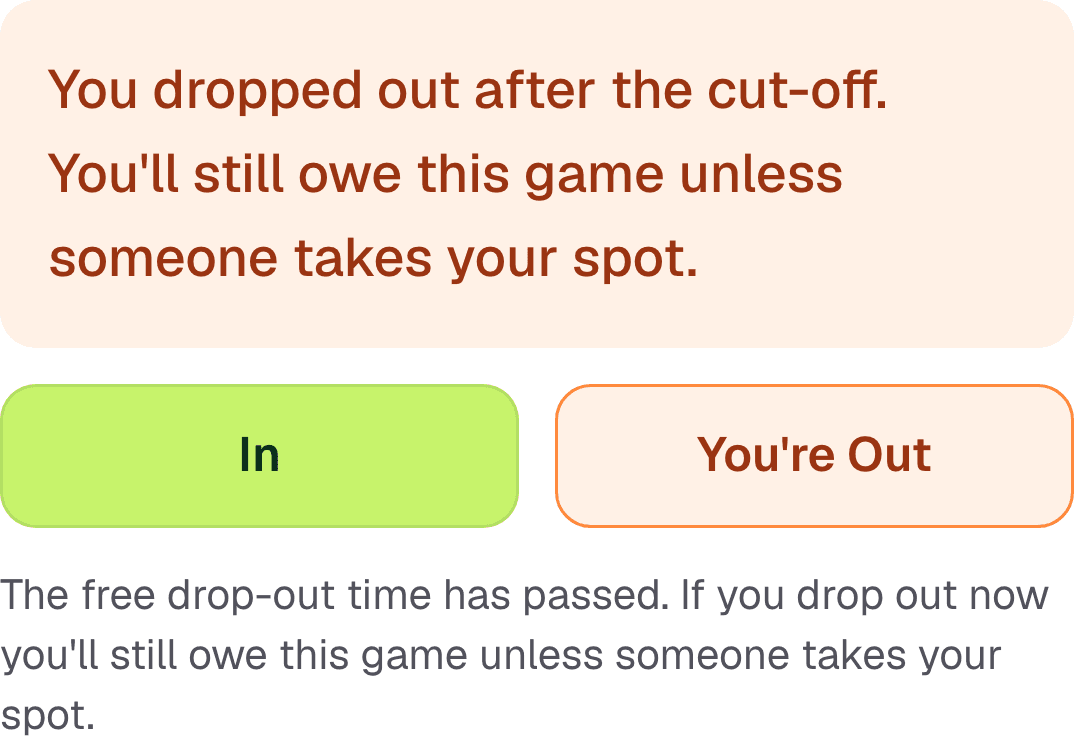
Step 10
Free or cheaper games
Your organiser can make a game free, or take money off it, for everyone or just for you. The game shows what you pay, and we email you.
If you'd already paid, the difference comes back as credit or a refund, whichever you chose.

Step 11
When the rules change
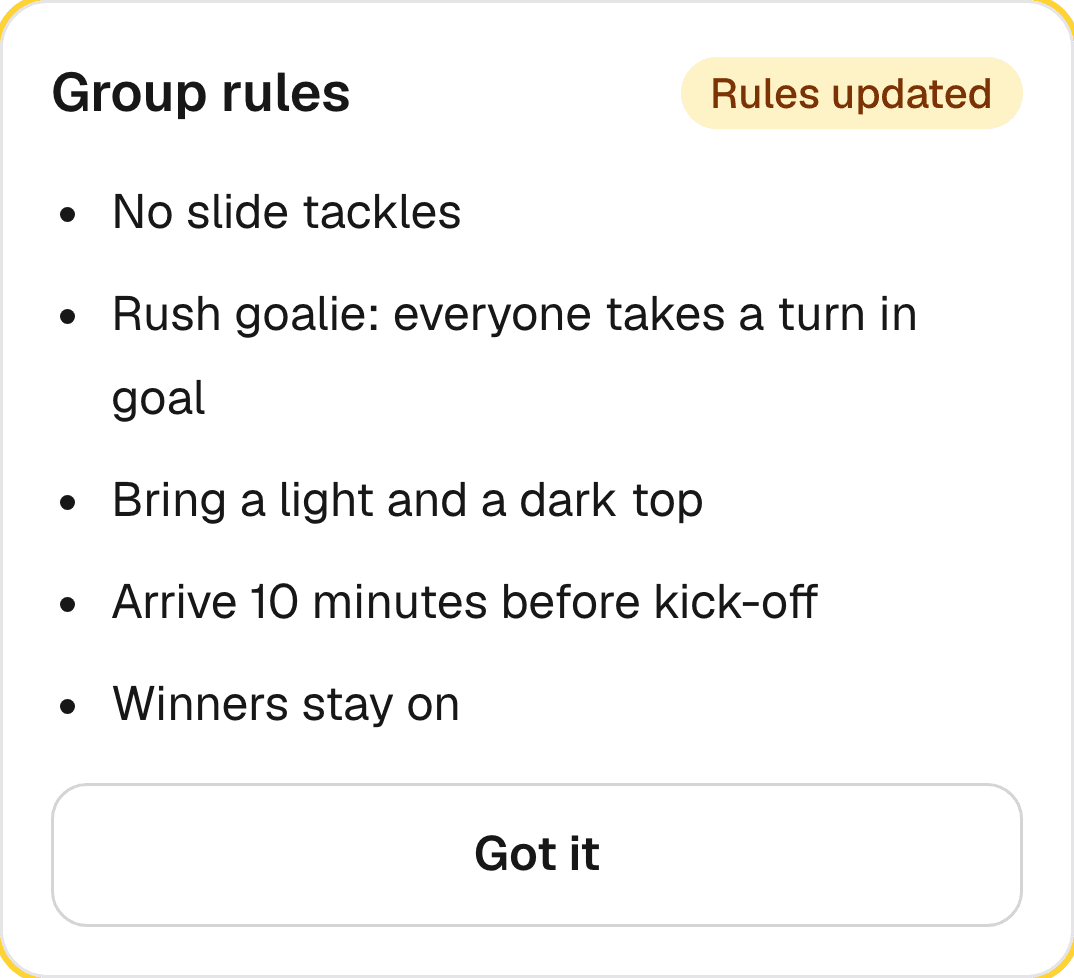
If your organiser changes the group rules, your group page shows Rules updated. Read them and tap Got it.
Step 12
Change how you pay, or leave
On your group page, tap Change how I pay, or leave. A new way to pay starts on the group's next billing day.
You can also change what you'd like if a game is cancelled, or leave the group. You can rejoin later with the invite link.
More detail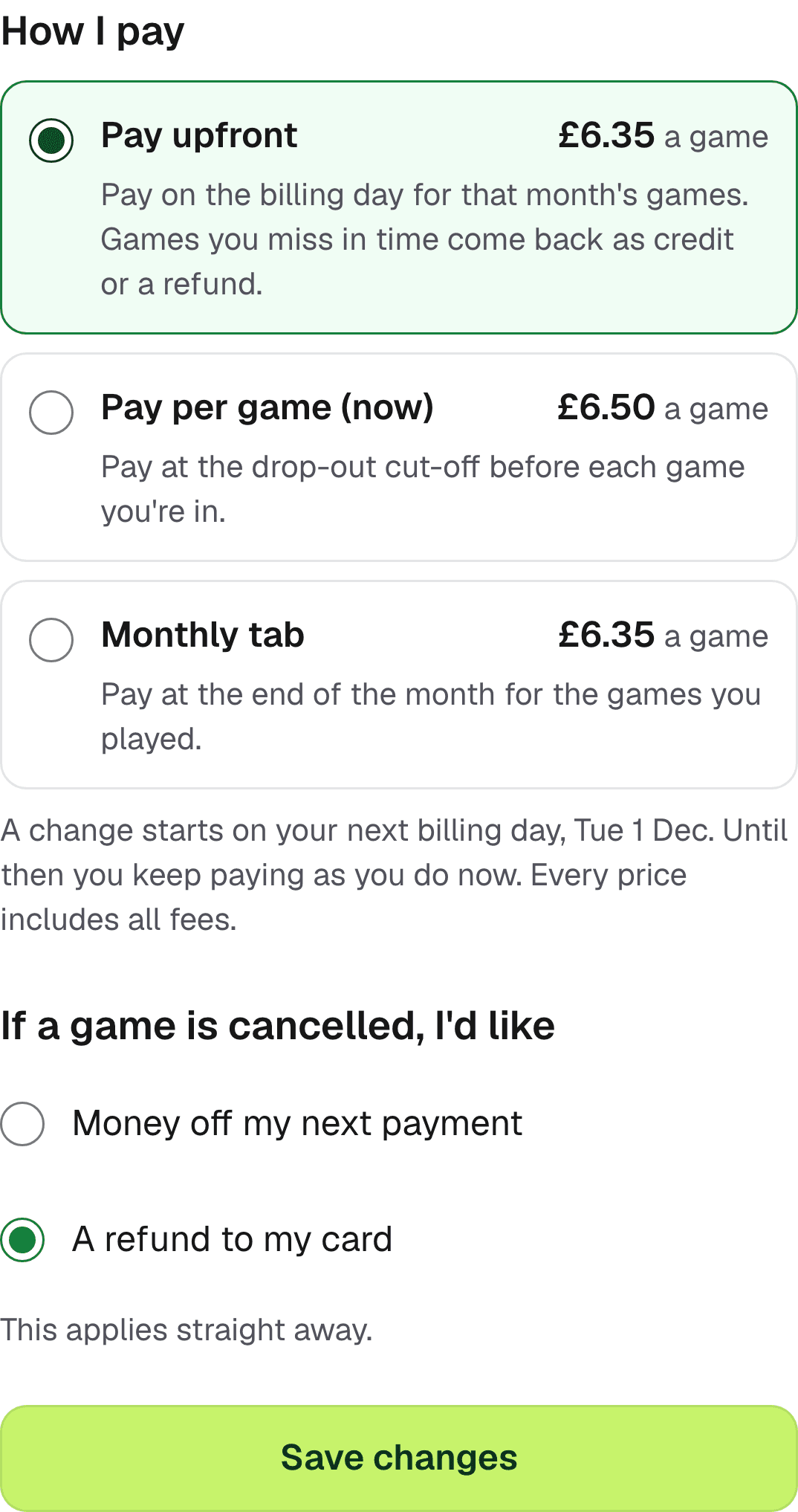
Step 13
Add your picture (optional)
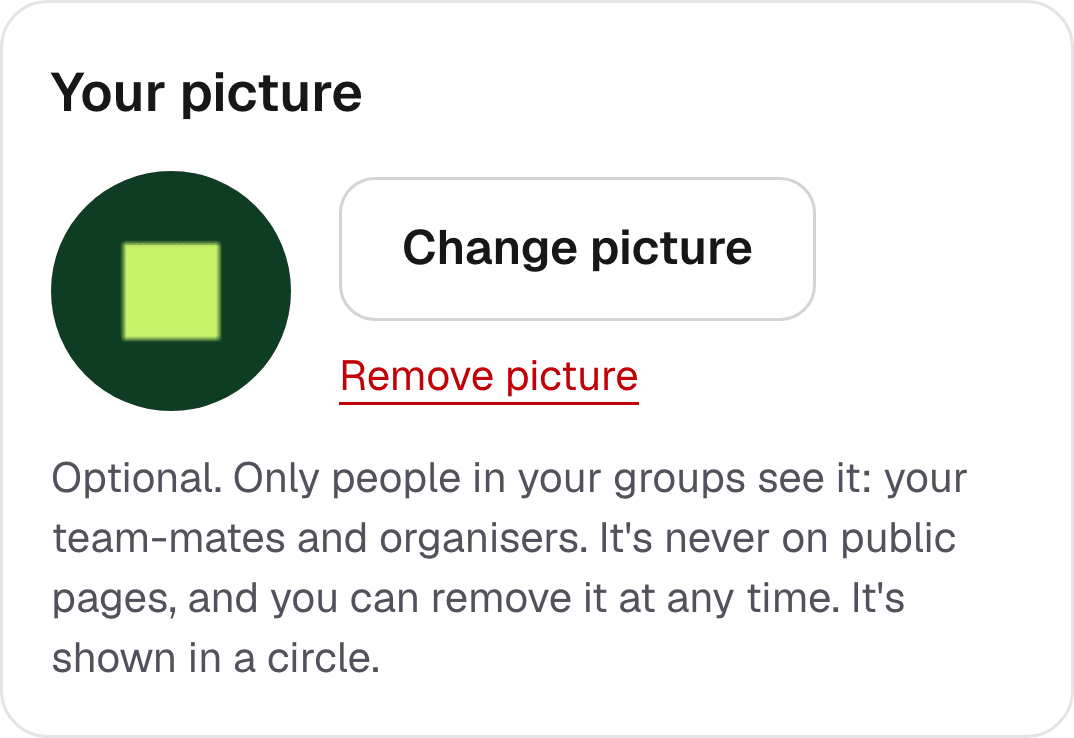
On Your profile, tap Add a picture under Your picture.
Only people in your groups see it, your team-mates and organisers. Never people outside them, and never on public pages.
Step 14
If your organiser removes you
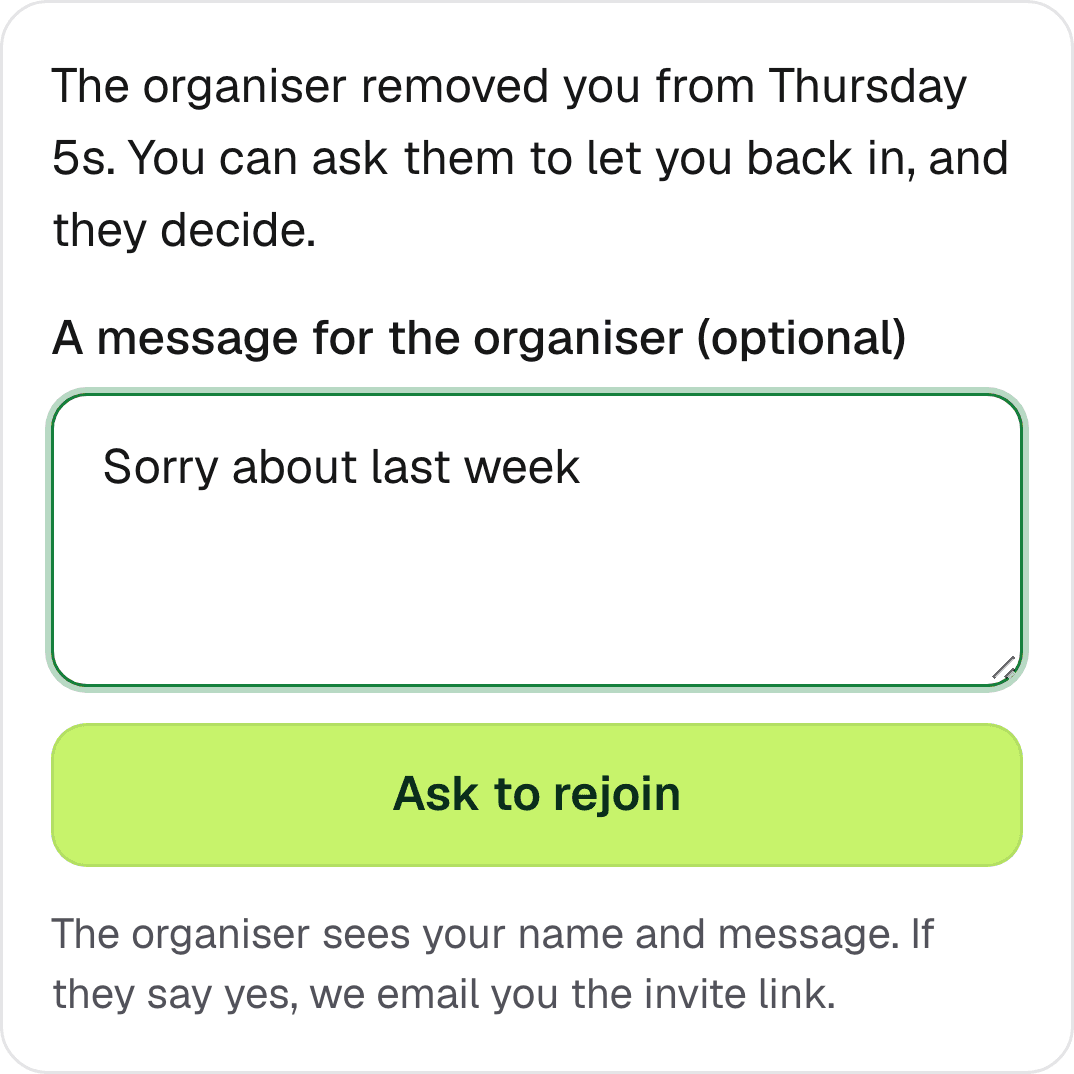
We email you, and anything you'd paid for upcoming games comes back. Tap Ask to rejoin in the email.
It shows when you can ask. Then send a short message, and the organiser decides. If they say yes, we email you the invite link.
More detail